Introduction to the WordPress Glossary
Starting a WordPress website can feel overwhelming. You are suddenly faced with terms that may sound technical or unfamiliar. Without guidance, these terms can confuse even the most motivated beginner. That is why this WordPress glossary is so important.
In this four-part guide, you will learn 20 essential WordPress terms that every beginner should know. Understanding these concepts will make your journey smoother and your website more effective. Whether you want to start a blog, build a business website, or launch an online store, mastering this vocabulary is your first step.
In Part 1, we will cover five of the most important terms: Dashboard, Posts, Pages, Themes, and Plugins.
1. WordPress Dashboard
The dashboard is the control center of your WordPress site. Once you log in, this is the first screen you see. It gives you an overview of your website’s activities and allows you to manage content, settings, and updates.
Why It Matters:
The dashboard is like the cockpit of an airplane. Without understanding it, you cannot control your site. From here, you can create posts, manage pages, install plugins, customize themes, and monitor performance.
Practical Example:
Imagine you log into your site and want to publish a new blog post. The dashboard gives you direct access to the “Add New Post” option. It also shows recent activity, plugin updates, and WordPress notifications.
Pro Tip:
Customize your dashboard by using plugins or settings. Removing unnecessary widgets makes it cleaner and easier to use.
FAQ:
Q: Can I change how my dashboard looks?
A: Yes. Many plugins allow dashboard customization, and you can also use the “Screen Options” tab at the top.
2. Posts
Posts are the heart of a blog. They are time-sensitive entries that display in reverse chronological order on your website. If you are running a news site or personal blog, posts are the content you publish most often.
Why It Matters:
Posts keep your site fresh and engaging. They encourage readers to return for new content and boost your SEO rankings. Search engines love updated posts because they signal activity and relevance.
Practical Example:
You run a recipe blog. Each recipe you share is created as a new post. Readers can comment, share, and browse posts through categories and tags.
Pro Tip:
Always optimize posts with headings, keywords, and meta descriptions. Adding internal links improves navigation and SEO performance.
FAQ:
Q: How are posts different from pages?
A: Posts are dynamic and time-based, while pages are static and timeless.
3. Pages
Pages are static content pieces on your website. Unlike posts, they are not organized by date. Pages usually provide important, permanent information. Common examples include About Us, Services, Contact, and Privacy Policy.
Why It Matters:
Pages help build trust and structure on your website. Visitors expect to find them when learning about your brand. Search engines also consider them important for credibility.
Practical Example:
A business website may have a “Contact” page with an email form, phone number, and location. That page does not change often but remains essential for communication.
Pro Tip:
Keep your core pages well-structured. Use concise text, add clear call-to-action buttons, and ensure they are mobile-friendly.
FAQ:
Q: Can I add a blog to my website if I only have pages?
A: Yes. You can create a dedicated “Blog” page and assign posts to display there.
4. Themes
Themes control the design and style of your WordPress site. They define the look, colors, fonts, layouts, and even certain features. WordPress offers thousands of free and premium themes, each catering to different needs.
Why It Matters:
Your theme shapes the first impression visitors get from your website. A clean, responsive, and attractive design improves user experience and keeps people on your site longer.
Practical Example:
If you own an online store, you might choose an eCommerce theme like Astra or Flatsome. For a blog, you might prefer a simple, minimalist theme such as GeneratePress.
Pro Tip:
Always choose a lightweight, SEO-friendly theme. Avoid themes with too many unnecessary features, as they can slow down your site.
FAQ:
Q: Can I switch themes without losing content?
A: Yes, but design elements may change. Always back up your site before switching.
5. Plugins
Plugins are software add-ons that extend the functionality of WordPress. They allow you to add features without coding. Whether you want to build an online store, improve SEO, or add contact forms, plugins make it possible.
Why It Matters:
Plugins transform WordPress into a powerful tool. They let beginners create professional websites with advanced features in minutes.
Practical Example:
- Yoast SEO: Helps optimize posts for search engines.
- WooCommerce: Turns WordPress into an online store.
- Elementor: Adds drag-and-drop page building.
Pro Tip:
Only install trusted plugins with good reviews. Too many plugins can slow down your site and increase security risks.
FAQ:
Q: How many plugins should I install?
A: There is no fixed number, but use only the ones you need. Fewer plugins mean better performance.
6. Widgets
Widgets are small blocks of content that you can add to different areas of your WordPress site. Common widget locations include sidebars, footers, and headers. Widgets often display extra content like recent posts, search bars, calendars, or social media feeds.
Why It Matters:
Widgets allow you to add functionality without coding. They improve user experience by making your site more interactive and informative.
Practical Example:
A blog might use a “Recent Posts” widget in the sidebar to encourage readers to explore older content. An online store may use a “Product Categories” widget to help shoppers browse easily.
Pro Tip:
Do not overload your site with too many widgets. Keep it clean and focus on user experience.
FAQ:
Q: Can I create custom widgets?
A: Yes, developers can build custom widgets, and some plugins also provide additional widget options.
7. Menus
Menus are navigation tools that guide visitors around your website. A menu usually appears at the top of a site but can also be placed in the footer or sidebar.
Why It Matters:
Good navigation helps users find information quickly. Menus also guide search engines in crawling and understanding your site structure.
Practical Example:
A restaurant website may have a menu with links to Home, Menu, Reservations, and Contact. A blog might have categories such as Travel, Recipes, or Tech Reviews.
Pro Tip:
Keep your menus simple and organized. Use clear labels that reflect the content users will find.
FAQ:
Q: Can I add external links to a WordPress menu?
A: Yes, menus can include links to external websites, posts, or pages.
8. Media Library
The media library stores all the images, videos, documents, and audio files uploaded to your WordPress site. From here, you can manage, edit, and insert files into posts and pages.
Why It Matters:
The media library centralizes your files, making them easy to access and reuse. A well-organized library also ensures that your website loads faster with optimized images.
Practical Example:
You upload a logo, product images, and blog graphics to the media library. These files can then be inserted across multiple posts and pages.
Pro Tip:
Always optimize images before uploading. Use plugins like Smush or ShortPixel to compress files without losing quality.
FAQ:
Q: Can I replace an image without breaking links?
A: Yes, plugins like “Enable Media Replace” allow you to update files without changing the URL.
9. Categories
Categories organize your blog posts into broad topics. They help readers and search engines understand your content structure.
Why It Matters:
Categories make your site easy to navigate. They also improve SEO by grouping similar posts together.
Practical Example:
A lifestyle blog may have categories like Food, Travel, Health, and Finance. Each post is assigned to a relevant category for better organization.
Pro Tip:
Avoid creating too many categories. Stick to main themes and use tags for specific details.
FAQ:
Q: Can one post belong to multiple categories?
A: Yes, but limit it to two or three categories to keep your site organized.
10. Tags
Tags are keywords that describe specific details of a post. They are more specific than categories and help readers find related content.
Why It Matters:
Tags improve discoverability. They act like an index, guiding readers toward similar posts on your website.
Practical Example:
In a recipe blog, a pasta recipe may have tags like “Italian,” “dinner,” or “quick meal.” Readers clicking on “Italian” can see other Italian recipes.
Pro Tip:
Do not use too many tags. Focus on relevant and specific terms to avoid clutter.
FAQ:
Q: Do tags improve SEO?
A: Tags help with internal linking but have minimal direct SEO impact. Use them for user navigation rather than keyword stuffing.
11. Permalinks
Permalinks are the permanent URLs assigned to your posts and pages. They should be clean, descriptive, and easy to remember. A well-structured permalink helps users and search engines understand the content.
Why It Matters:
Permalinks are crucial for SEO. They make your site look professional and improve click-through rates. Long, messy links discourage visitors and harm rankings.
Practical Example:
A blog post about healthy eating might have the permalink: yourdomain.com/healthy-eating-tips instead of yourdomain.com/?p=123.
Pro Tip:
Set your permalink structure early. Use the “Post name” option in WordPress settings for clean, SEO-friendly URLs.
FAQ:
Q: Can I change permalinks later?
A: Yes, but changing them may break links. Always set redirects if you update old permalinks.
12. Gutenberg Editor
The Gutenberg editor, also known as the block editor, is WordPress’s modern content editor. It allows you to build posts and pages using drag-and-drop blocks.
Why It Matters:
Gutenberg makes content creation simple and visual. Each element—headings, paragraphs, images, videos, buttons—is treated as a block that you can move or style independently.
Practical Example:
You can add a heading block, insert an image block, and follow with a call-to-action button block—all without touching code.
Pro Tip:
Learn how to use reusable blocks. They save time by allowing you to insert pre-designed elements across multiple pages.
FAQ:
Q: Is Gutenberg better than classic editor?
A: For beginners, yes. Gutenberg is more flexible, visual, and aligned with modern web design practices.
13. Classic Editor
The classic editor is WordPress’s original text-based editor. It looks similar to Microsoft Word, with formatting options like bold, italic, lists, and media insertion.
Why It Matters:
Some users prefer the simplicity of the classic editor. It’s lightweight and straightforward, especially for writing plain text posts.
Practical Example:
A blogger who writes daily journal-style posts may prefer the classic editor for its speed and simplicity.
Pro Tip:
If you want to continue using it, install the “Classic Editor” plugin. WordPress still supports it but focuses more on Gutenberg development.
FAQ:
Q: Can I switch between Gutenberg and Classic Editor?
A: Yes, you can toggle between them using plugins or page settings.
14. Shortcodes
Shortcodes are small snippets of code inside square brackets. They allow you to add advanced features without coding. Examples include forms, buttons, galleries, or contact details.
Why It Matters:
Shortcodes simplify customization. Instead of writing long code, you can add functionality by pasting a shortcode into a post or page.
Practical Example: Error: Contact form not found.
Typing
Pro Tip:
Keep track of the shortcodes you use. If you uninstall a plugin, the shortcode may stop working, leaving broken content behind.
FAQ:
Q: Can I create my own shortcode?
A: Yes, if you know basic PHP, you can create custom shortcodes in your theme or plugin.
15. Customizer
The customizer is a built-in WordPress tool that allows you to preview and modify your site’s appearance in real time. From colors and fonts to widgets and menus, you can see changes before publishing.
Why It Matters:
The customizer makes it easy to personalize your site without coding. It ensures that your design choices look good across different devices.
Practical Example:
You want to change your site’s header color. The customizer lets you pick a new shade and instantly preview it before saving.
Pro Tip:
Use the responsive preview feature. This shows how your site will appear on desktops, tablets, and smartphones.
FAQ:
Q: Is the customizer available for all themes?
A: Most themes support it, but some advanced themes use their own custom options panel.
16. User Roles
WordPress includes different user roles that define what actions each person can perform on a website. The main roles are Administrator, Editor, Author, Contributor, and Subscriber.
Why It Matters:
User roles help manage site security and collaboration. By assigning the right permissions, you ensure that only trusted people can make critical changes.
Practical Example:
On a news site, the Administrator manages everything, Editors review articles, Authors publish posts, Contributors draft content, and Subscribers read updates.
Pro Tip:
Never give Administrator access to everyone. Restrict high-level permissions to trusted users only.
FAQ:
Q: Can I customize user roles?
A: Yes, plugins like “User Role Editor” let you create custom roles with tailored permissions.
17. SEO (Search Engine Optimization)
SEO is the process of optimizing your website so search engines can find and rank it. WordPress offers many SEO tools to help beginners improve visibility.
Why It Matters:
Good SEO brings organic traffic, boosts brand awareness, and increases conversions. Without SEO, your website may remain invisible in search results.
Practical Example:
Plugins like Yoast SEO or Rank Math allow you to add meta descriptions, optimize keywords, create XML sitemaps, and manage redirects.
Pro Tip:
Focus on writing valuable content. Use proper headings, internal linking, and optimized images to improve SEO naturally.
FAQ:
Q: Do I need coding knowledge for SEO in WordPress?
A: No, plugins make it beginner-friendly. However, basic SEO knowledge is important for long-term growth.
18. Backup
A backup is a saved copy of your entire website, including files and databases. Backups protect you from data loss caused by hacking, errors, or crashes.
Why It Matters:
Without backups, you risk losing everything if your site gets hacked or corrupted. Regular backups ensure you can restore your website anytime.
Practical Example:
A blogger accidentally deletes their theme files. Thanks to a recent backup, they restore the site within minutes.
Pro Tip:
Schedule automatic backups using plugins like UpdraftPlus or Jetpack. Always store copies in external locations like Google Drive or Dropbox.
FAQ:
Q: How often should I back up my site?
A: Weekly for small sites and daily for large or frequently updated websites.
19. Security
Security refers to measures taken to protect your WordPress site from malware, hackers, and unauthorized access.
Why It Matters:
A hacked website can harm your reputation, cause data loss, or even spread viruses to visitors. Strong security ensures trust and reliability.
Practical Example:
Installing plugins like Wordfence or Sucuri adds firewalls, malware scanning, and login protection. Using SSL certificates encrypts data between your site and visitors.
Pro Tip:
Always keep WordPress, themes, and plugins updated. Outdated software is the number one target for hackers.
FAQ:
Q: Do I need paid security plugins?
A: Free plugins provide basic protection, but premium ones offer advanced features like malware cleanup and real-time monitoring.
20. Hosting
Hosting is the service that stores your WordPress website’s files and makes it accessible online. Different types of hosting include shared, VPS, dedicated, and managed WordPress hosting.
Why It Matters:
The quality of your hosting impacts speed, security, and uptime. A poor host can slow down your site and hurt SEO.
Practical Example:
Managed WordPress hosting providers like Kinsta or WP Engine handle updates, backups, and performance optimization for you.
Pro Tip:
Choose a reliable hosting provider that offers good support, SSL certificates, and one-click WordPress installations.
FAQ:
Q: Can I switch hosting providers later?
A: Yes, you can migrate your WordPress site to a new host anytime with plugins or professional help.
Conclusion
This complete WordPress glossary has walked you through 20 essential terms every beginner should know. From understanding the dashboard and creating posts to managing security and choosing hosting, you now have a strong foundation.
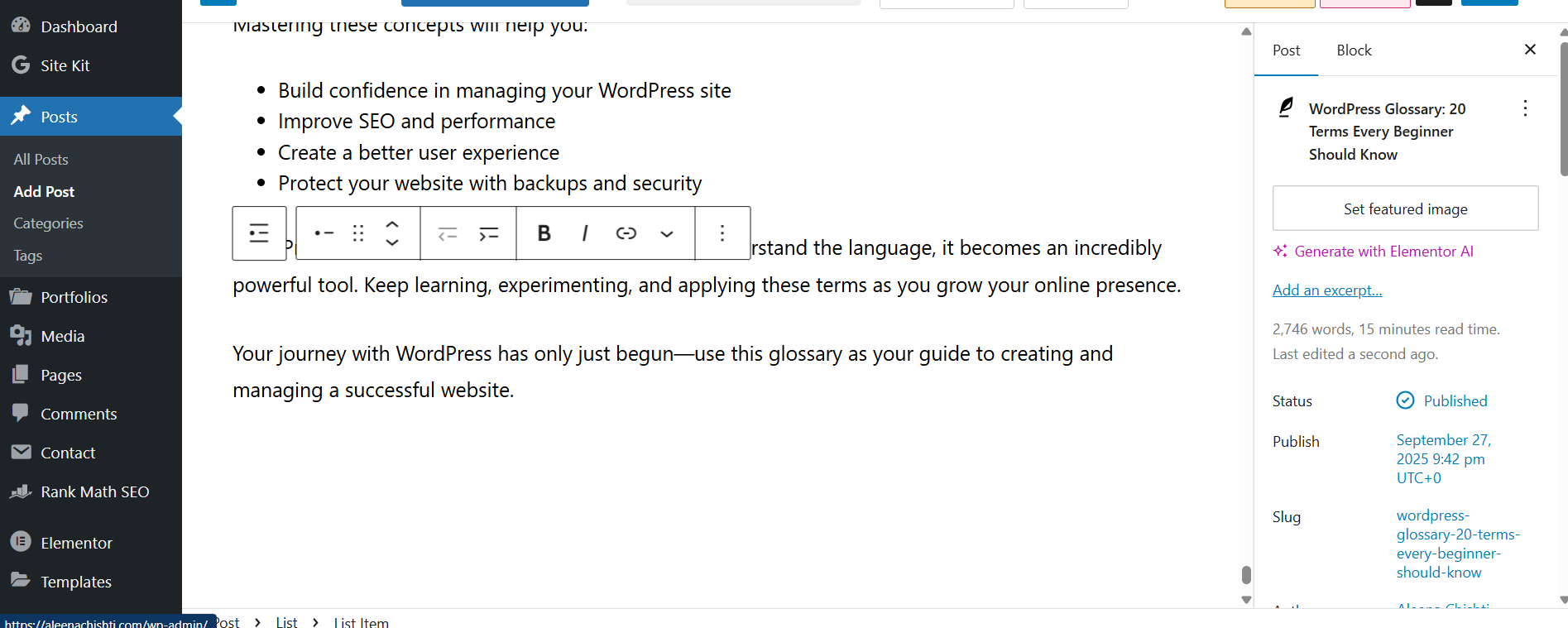
Mastering these concepts will help you:
- Build confidence in managing your WordPress site
- Improve SEO and performance
- Create a better user experience
- Protect your website with backups and security
WordPress may seem complex at first, but once you understand the language, it becomes an incredibly powerful tool. Keep learning, experimenting, and applying these terms as you grow your online presence.
Your journey with WordPress has only just begun—use this glossary as your guide to creating and managing a successful website.