Want to launch your own website or blog but don’t know where to start? You’re in the right place!
WordPress powers over 40% of all websites on the internet — and for good reason. It’s free, easy to use, and incredibly flexible. In this guide, we’ll walk you through how to install WordPress step by step, whether you’re using a hosting provider or doing it manually.
Understanding WordPress Installation Options
Manual Installation vs One-Click Installation
There are two primary ways to install WordPress:
- Manual Installation – Ideal if you prefer hands-on setup and customization.
- One-Click Installation – Perfect for beginners who want a quick start.
Which Option Should You Choose?
If you’re new to website creation, go for the one-click installation offered by most hosting providers. But if you want more control, the manual method is best.
Prerequisites Before Installing WordPress
Before we begin, make sure you have:
Domain Name
Your website’s address — for example, www.yourwebsite.com.
Web Hosting
A hosting account where your WordPress files will live. Providers like Bluehost, Hostinger, or SiteGround offer WordPress-optimized plans.
FTP Client (Optional)
For manual uploads, use tools like FileZilla to transfer files from your computer to the hosting server.
Step 1 – Download WordPress
Head to the official website wordpress.org and download the latest version.
Once downloaded, you’ll get a .zip file containing all the necessary WordPress files.
Step 2 – Upload WordPress to Your Hosting Account
Using cPanel File Manager
- Log in to your cPanel.
- Open File Manager.
- Navigate to the
public_htmlfolder. - Upload the WordPress
.zipfile and extract it there.
Using an FTP Client
- Connect to your hosting server using FileZilla.
- Upload all extracted WordPress files to the root directory (
public_htmlorwww).
Step 3 – Create a MySQL Database
Accessing MySQL Database Wizard
- In your cPanel, find MySQL Databases.
- Create a new database (e.g.,
wp_database).
Assigning a User and Password
- Add a new user and assign a strong password.
- Connect the user to your database with ALL PRIVILEGES.
Step 4 – Configure wp-config.php
Editing the File
In your WordPress folder, find the file wp-config-sample.php.
Adding Database Information
Rename it to wp-config.php and open it. Replace the following lines with your own details:
define('DB_NAME', 'your_database_name');
define('DB_USER', 'your_database_user');
define('DB_PASSWORD', 'your_password');
define('DB_HOST', 'localhost');
Save and upload the updated file to your server.
Step 5 – Run the WordPress Installation Script
- Open your web browser and visit your domain (e.g.,
www.yourwebsite.com). - You’ll see the WordPress installation screen.
- Select your preferred language and click Continue.
- Fill in your site title, username, password, and email.
- Click Install WordPress — and that’s it!
Step 6 – One-Click Installation Method
Using Hosting Providers’ Auto Installers
If your host offers Softaculous, Installatron, or Fantastico, you can install WordPress in seconds.
Steps for One-Click Setup
- Log into your hosting control panel.
- Find the WordPress installer.
- Click Install.
- Choose your domain name and enter site details.
- Click Finish Installation — done!
Step 7 – Log In to Your WordPress Dashboard
After installation, visit:
yourwebsite.com/wp-admin
Log in using your admin credentials. You’ll land on the WordPress Dashboard, where all the magic happens — from adding posts to customizing your design.
Step 8 – Post-Installation Setup
Choosing a Theme
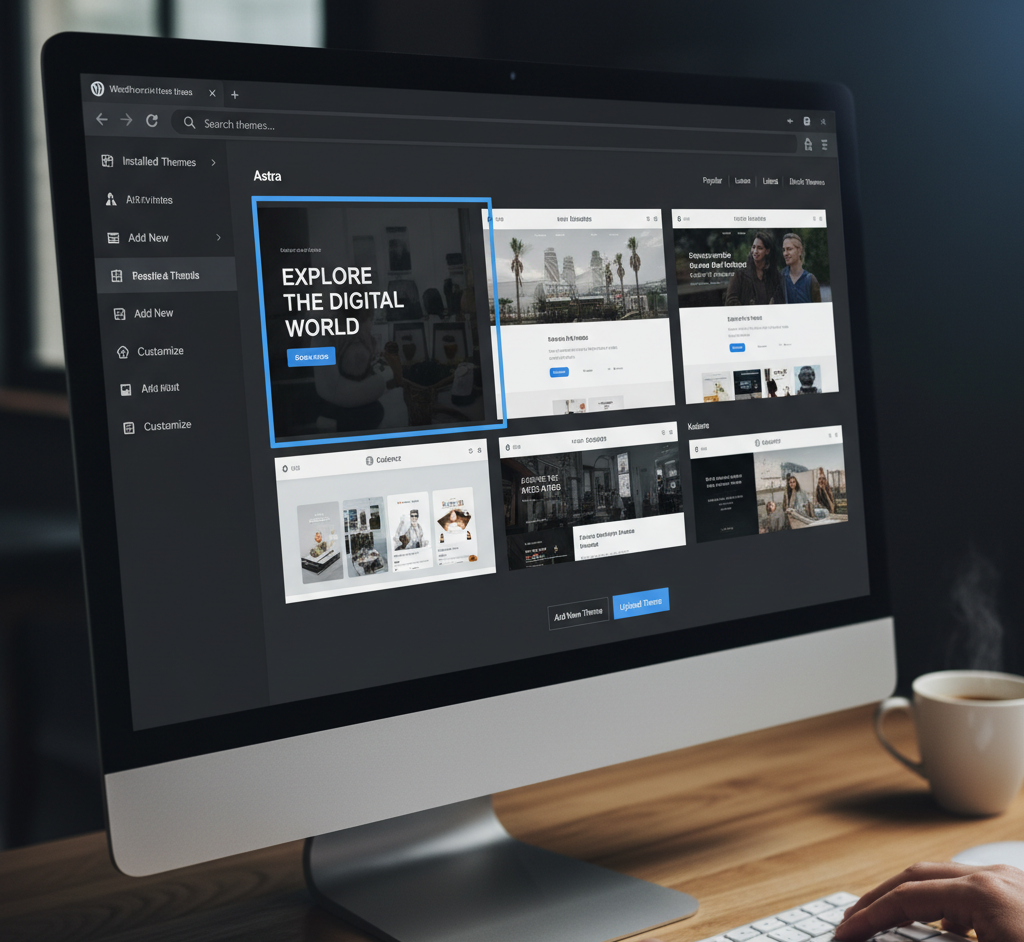
Go to Appearance → Themes → Add New. Browse thousands of free and premium themes and activate your favorite.
Installing Plugins
Enhance your site by navigating to Plugins → Add New.
Install essential ones like:
- Yoast SEO (for search optimization)
- Wordfence (for security)
- Elementor (for page building)
Setting Up Your Site
Add your first post or page, create menus, and adjust general settings under Settings → General.
Troubleshooting Common Installation Errors
Database Connection Errors
Double-check your wp-config.php file for the correct database name, user, and password.
File Permission Issues
Ensure files are readable by the server (usually 755 for directories and 644 for files).
Memory Limit Problems
Add this line to your wp-config.php to increase memory:
define('WP_MEMORY_LIMIT', '256M');
Tips for Secure and Fast WordPress Setup
- Secure Your Admin URL: Change your login URL using plugins like WPS Hide Login.
- Update Regularly: Keep your themes, plugins, and WordPress core updated.
- Use Caching and Security Plugins: Plugins like WP Rocket and Sucuri help speed up and protect your site.
Conclusion
Installing WordPress might sound technical, but once you go through these steps, you’ll realize how easy it is! Whether you use the manual method or a one-click installer, your website will be ready to go in no time.
With WordPress, you’re not just building a website — you’re creating endless opportunities for your brand, blog, or business.
FAQs
1. How long does it take to install WordPress?
Usually, less than 10 minutes if you’re using a one-click installer.
2. Can I install WordPress without hosting?
Yes, you can install it locally using tools like XAMPP or Local by Flywheel for testing.
3. What’s the difference between WordPress.com and WordPress.org?
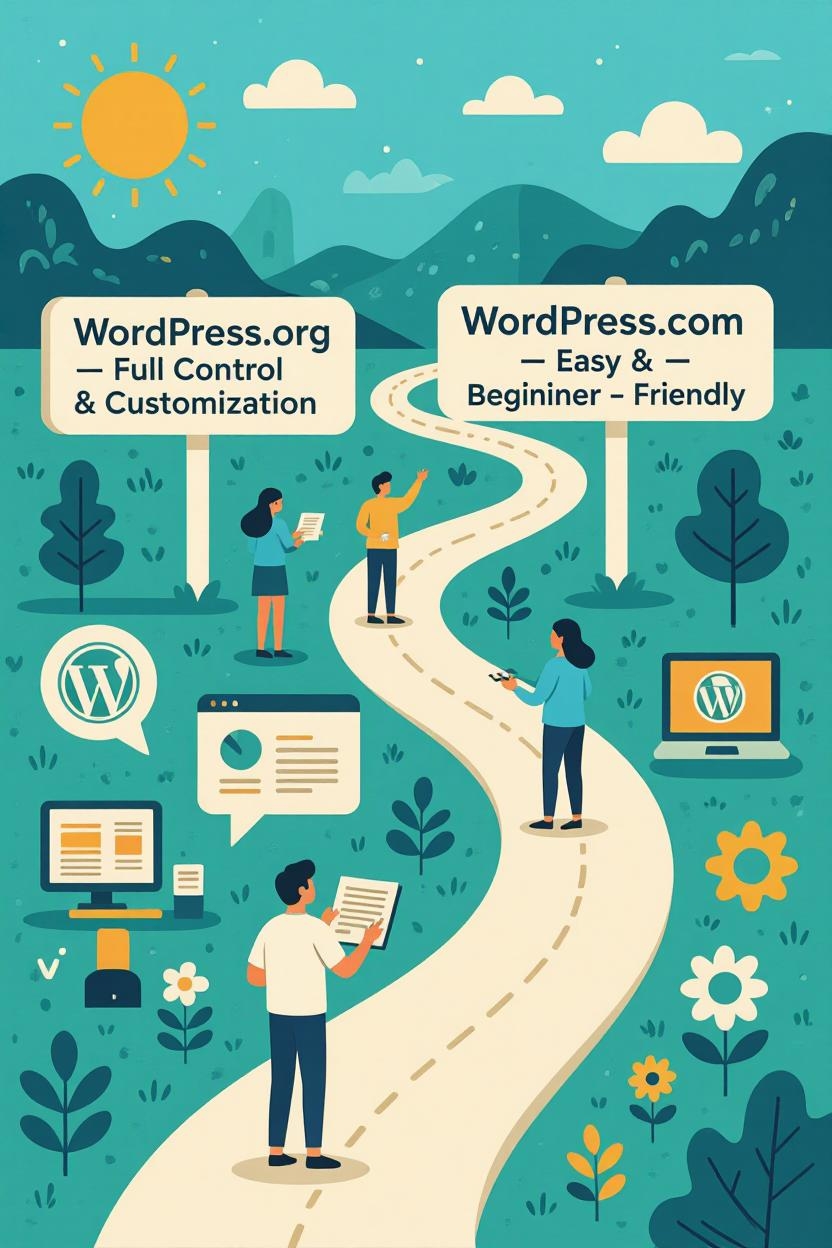
WordPress.com is hosted for you, while WordPress.org lets you self-host and customize freely.
4. Do I need technical skills to install WordPress?
Not at all. The one-click installation process is beginner-friendly.
5. How do I uninstall WordPress?
Simply delete your WordPress files and database from your hosting account.